Did your new iPad arrive today? If you’re reading this, you’re probably wondering how to set it up with your corporate Exchange server. The good news is that Apple has been working on Microsoft Exchange integration for years, and the iPhone OS used in the iPad sports fairly complete Exchange ActiveSync support.
Read The Guide!
Almost two years ago, I posted an article entitled “How To Set Up iPhone Exchange ActiveSync“. This has become, by far, the most popular thing I have ever written, with literally millions of page views. I summarized the series of articles I wrote on that subject in the iPhone Exchange ActiveSync Guide, which has become the first stop for many corporate iPhone users.
Now that the iPad is here, I have developed two similar documents, The iPad Exchange ActiveSync Guide and The iPad Exchange ActiveSync Troubleshooting Guide. You really ought to read those instead of bothering with this outdated content!
Quick Start: Up and Running With Exchange
For the most up-to-date information, see my iPad Exchange ActiveSync Guide!
Here’s the quick how-to for getting Exchange up and running on your iPad.
We will set up the mail account, and the iPad will automatically enable sync for Calendar and Contacts.
Before You Begin |
|
| * | Install the latest version of iTunes |
| * | Back up your iPad, since Exchange ActiveSync configuration will delete all local contacts and calendar entries. Although it will coexist with MobileMe, IMAP contacts, and WebDAV and ICS calendars, ActiveSync will overwrite any non-synchronized entries. If you want to save your existing contacts and calendar entries, you should use iTunes’ desktop synchronization feature to save them to a compatible application. |
| * | Make sure you are connected to a reliable and fast network (preferably Wi-Fi) before beginning |
Configuring Exchange ActiveSync on the iPad |
|
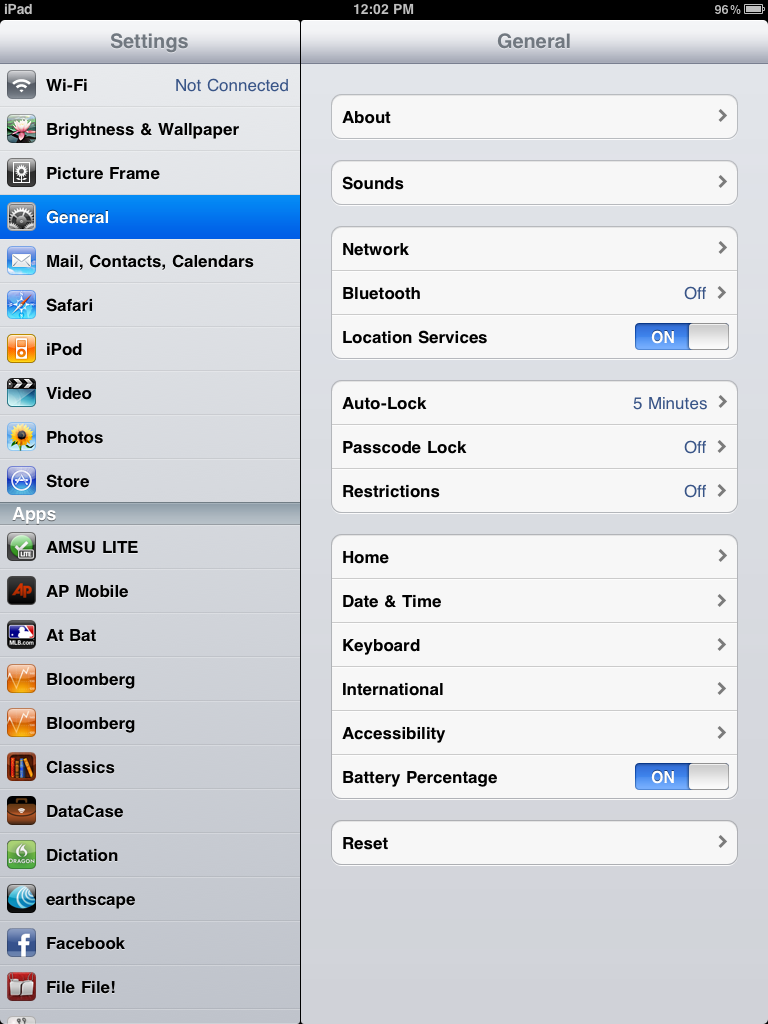 |
Tap the “Settings” icon from the home screen, then “Mail, Contacts, Calendars” |
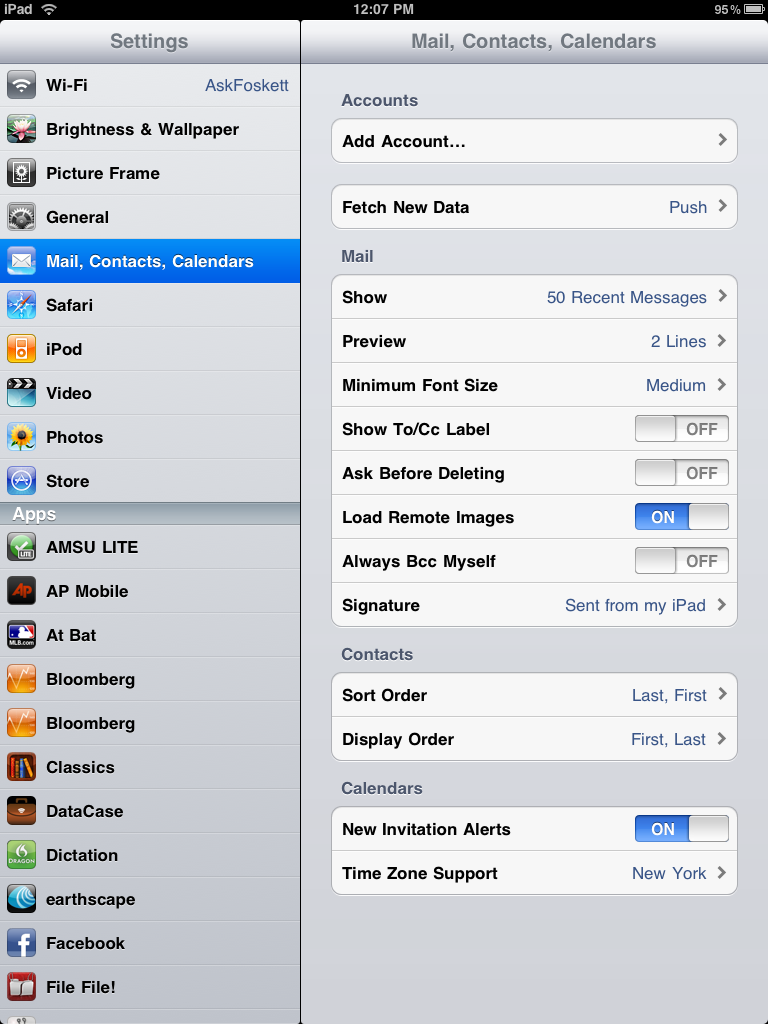 |
In “Mail, Contacts, Calendars”, tap “Add Account…” |
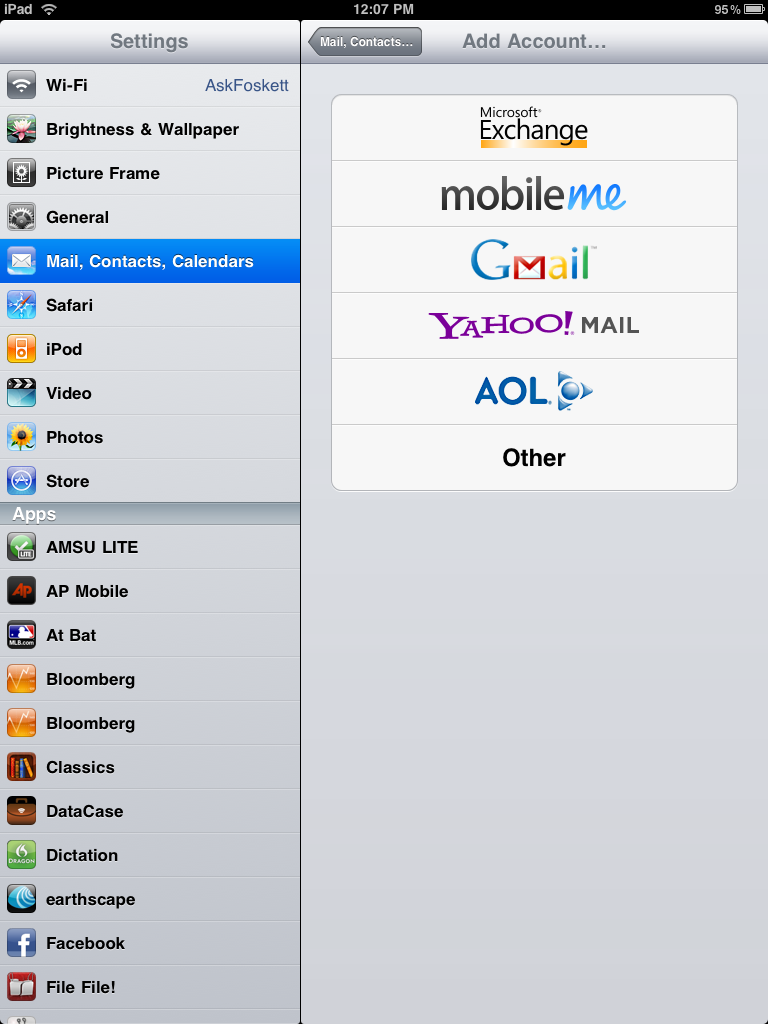 |
Tap the “Microsoft Exchange” icon Note: This is where you come in if you tap the Mail app from the home screen with no accounts configured |
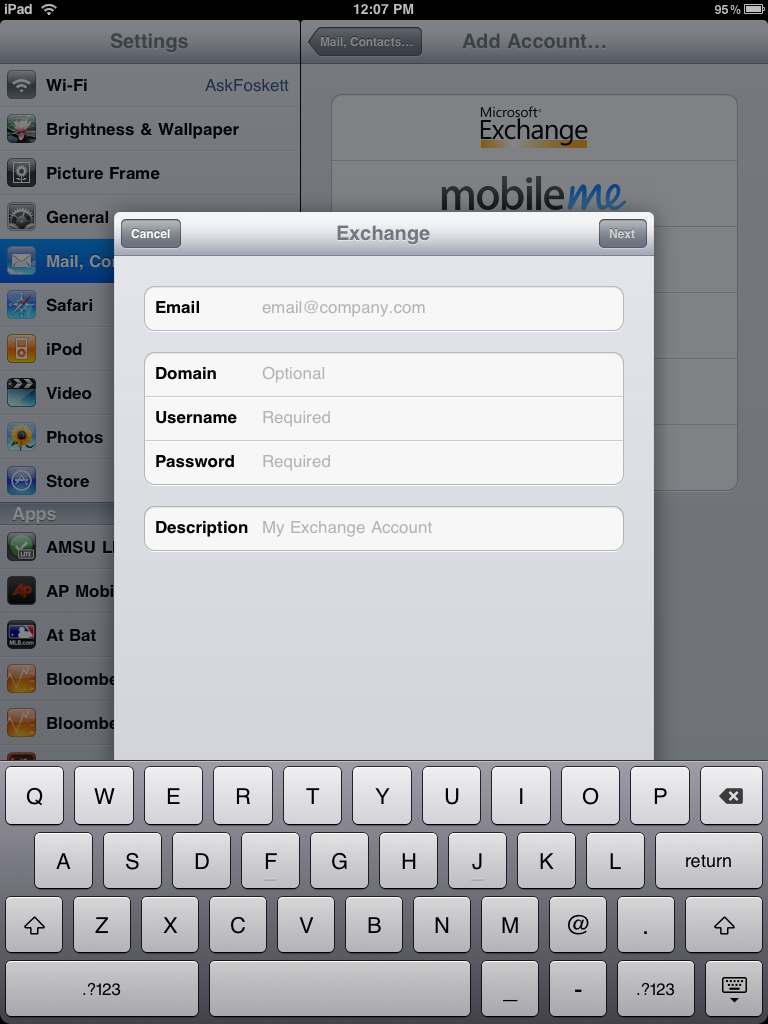 |
Now you will enter your Exchange account information:
|
 |
Tap “Next” and the iPad will attempt to auto-discover and configure the Exchange account Note: This can take up to 5 minutes on slow networks or if autodiscovery is not supported |
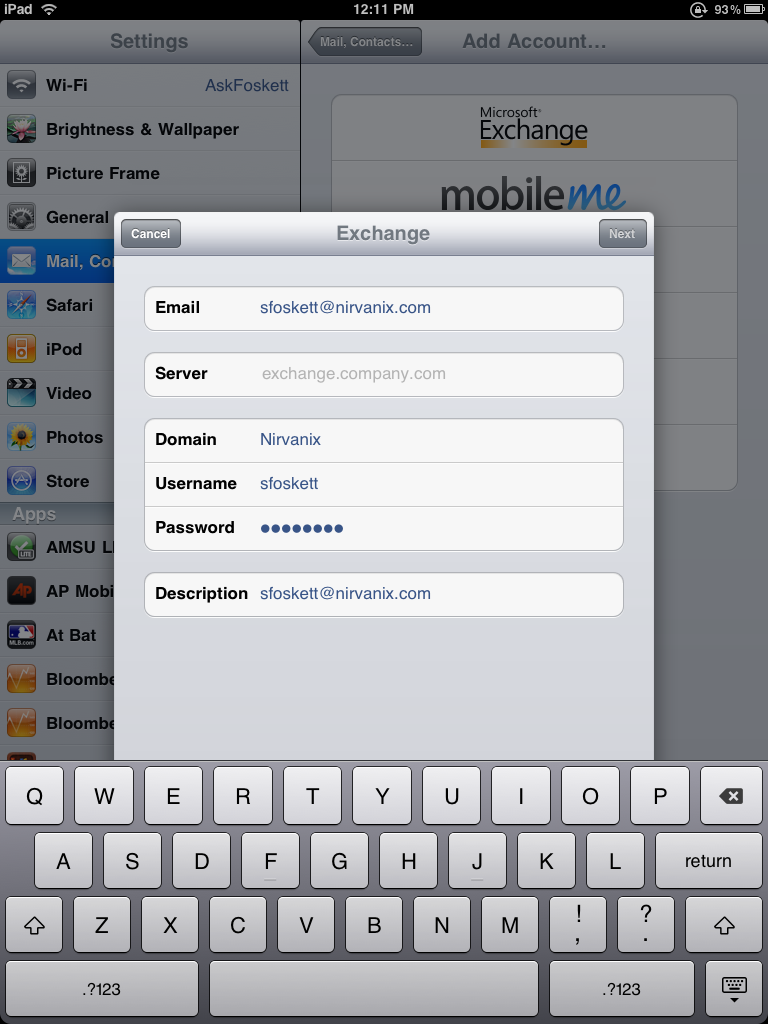 |
If your Exchange server configuration does not support Autodiscovery, it will fail (saying it couldn’t validate your account), and you will have to manually enter the Server name (see “Which Server Name Do I Enter?” below for more details) |
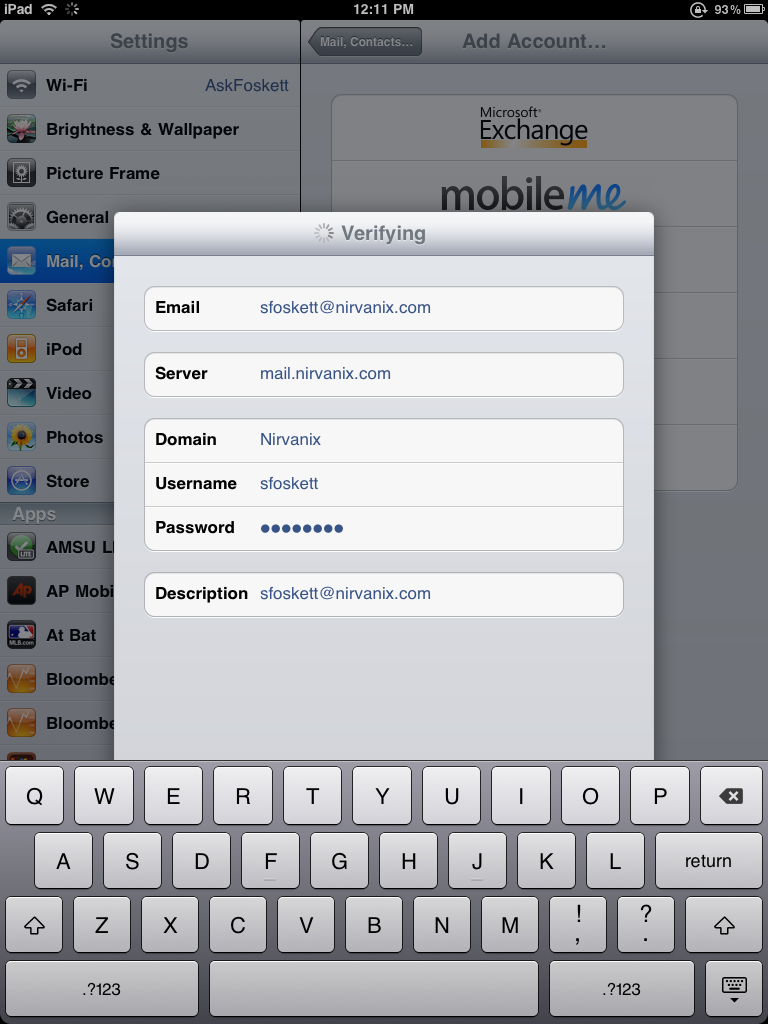 |
Tap “Next” and the iPad will verify the configuration |
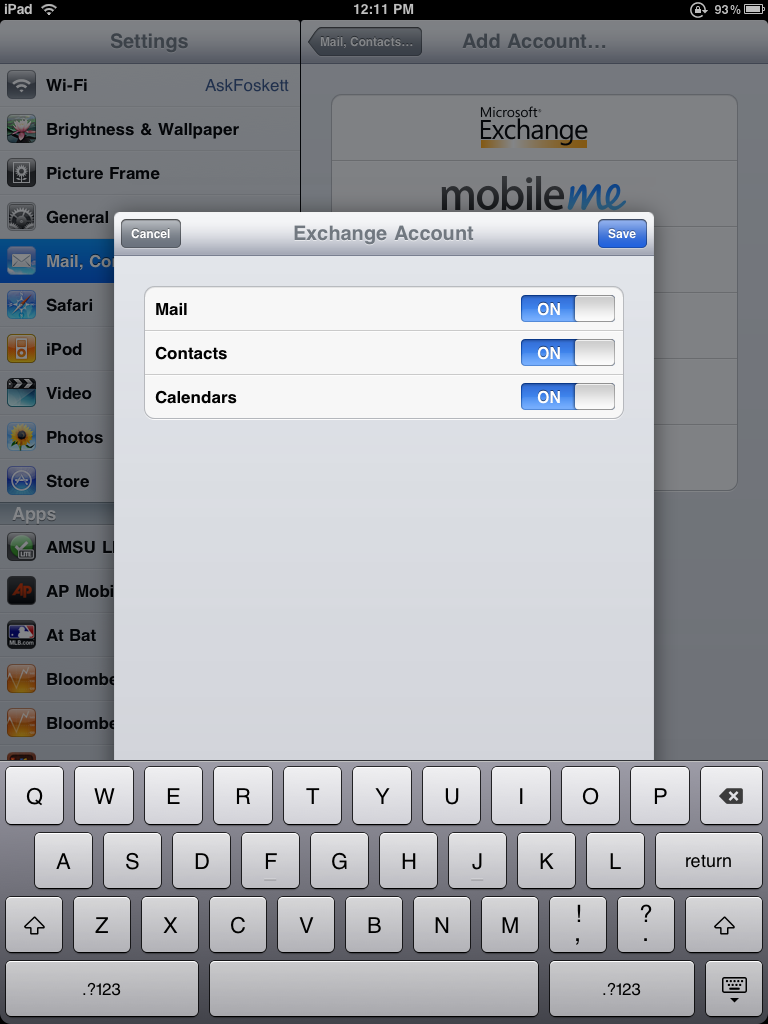 |
By default, the iPad will synchronize all three data types (Mail, Contacts, and Calendars) with your Exchange ActiveSync server, but you can turn one or more off if you wish |
| Tap “Done” and the iPad will finalize the configuration and return you to the “Mail, Contacts, Calendars” menu while your iPad communicates with the server Note: It can take a few minutes for calendar entries and contacts to show up |
|
For the most up-to-date information, see my iPad Exchange ActiveSync Guide!
What The iPad Lacks

- The iPad will remain limited to full ActiveSync with a single Exchange server. Although you are free to establish as many IMAP connections as you like, including connecting to Exchange with IMAP, you cannot use more than one ActiveSync service. However, as noted above, 3.0 does include LDAP support so at least the contacts from your second Exchange server might be accessible.
- Spotlight does not include full-text search of mail messages. Although it’s nice to be able to search through everything on the iPad, and even content on the Exchange server, you still have to remember the sender, subject, etc.
- Still no notes and tasks sync (with Exchange). Although the iPad does allow synchronization of notes with Apple Mail for Mac users, it does not support Exchange or Apple’s own MobileMe over-the-air services.
- No public folder support.
- No unified inbox, and switching between inboxes, especially in portrait mode, is difficult.
As the iPad advances, I will keep my eyes open for enterprise Exchange ActiveSync features and post them here. Subscribe to my Apple feed for up-to-date details!
Stephen, you might want to change the following just slightly:
“upgrade your phone to the latest iPad OS”. 😉
Oops! None of the screen shots came through either. I’ve updated the text and the images now…
This is a terrific guide — and it helped get my ActiveSync up and running. But now I hear that using IMAP to connect the iPad to Exchange allows for better offline reading, responding and deleting of email. Are you going to add the steps for using IMAP?
This seems like a fantastic place for this type of info. Now that I have tried flattery, I shall hit you up with my question 🙂
I have exchange working great on my iPad, but, I have 3 other workmates who’s calendars I have access to so that I can see if any appointments I make clash with theirs. I have added them as delegates in iCal for my exchange account on my Mac. We are using Exchange 2007.
Is there a way that I can add their Calendars so that I can at least view them on my iPad? It would seem that for now the answer would be “No”, but I thought I would ask just inacse there is something that I am missing.
Thanks
FYI – there is a bug where if you aren’t able to connect to the server, and you enter in a domain, the exchange verify crashes to ‘desktop’ with no messages. The solution is to not enter the domain information and proceed. Once the connect fails, then you can manually add the domain with the server url.
Steven
thanks for the tip, excellent Tip. Question I have is, how did you get the screen shots? What program did you use to copy the screen shots or where did get it? I would like to do that as well.
Press the home button and the power button simultaneously to take a screen shot in the iPad or iPhone.
I am synched successfully with exchange on iPad but having trouble getting my “back data” to load. Have set to add 200 recent emails in each folder. On my iPhone this gives me “the works”, going back through much of my history. On iPad seems willing to only go back a few days. Does not work for me – need historical emails for this to be a useful email tool. Suggestions? Am I missing something obvious?
I have managed to sync iPad with my work exchange server, the sub-folders in my inbox have been included, but the emails that should be in them have not. Can you give me any advice about this issue?
Many thanks.
Thanks for the information, however I still cannot get my iPad to get my calendar. My iPhone is fine and works but when I followed the steps you provided it kept saying “unable to verify account information.”
I currently have my iPad all set for emails from my work exchange account and have no problems with email.
I just cannot add the calendar. Please help.
so, i cannot get my iPad to work at all with my works exchange server… however, a colleague can do it fine… so then we tried to set up his email onto my iPad, thinking it was my account…. it still did not work… it seems to be my iPad…
any thoughts?
so, i cannot get my iPad to work at all with my works exchange server… however, a colleague can do it fine… so then we tried to set up his email onto my iPad, thinking it was my account…. it still did not work… it seems to be my iPad…
any thoughts?
Thanks for the info. Quick question! I’ve just set up exchange sync on my new ipad and my iphone has now deleted all e-mail, contacts and calendar! Does this mean that I can only sync to a single device?
Hello,
After this step: “Tap “Next” and the iPad will verify the configuration”
The ipad veryfy and show the server but does not allow me to tap “next”. Am I missing some step?
Thank you for your help !!
I am having the same issue as David. Any fixes?
I fixed the problem. I went into the settings on my ipad and and opened my exchange account. From there I opened up account info and and switched the SSL tab into the off position. I then switched it back on and chedked my folders in exchange. They populated!
Hello I am wondering what to do…
I do have the following hard ware : 1 laptop(work), 1 PC (Home) , 1 ipad, 1 HTC HD2 (Windows moble 6,5) celphone
I would like to sync wirless all my data which means calender, email contacts (is possible todo and notes). as well I would like to share my calender with my wife she has a laptop and a Iphone.
can you help to tell me whic is the best solution Mobile me or mircosoft exchange?
Here’s a weird occurance … My iPad receives a few emails from MS exchange but my MS Entourage doesn’t. So therefore I miss emails at work but have them appear on the iPad!?!?!?!
Whats going on here … ?
I am an IT Consultant and getting a lot of requests for the iPad/exchange setup. Can I conenct it to my own office PC to do the basic first-out-of-the-box setup of the ipad, then setup exchange, then take to clients place to conenct to tier PC and sync thier itunes? Will tis delete/remove teh already setup exchange settings?
Is there any way that I can turn off the mailing syncing bewteen my IPad and Exhange JUST when I trash mail on my Ipad. This is how my blackberry is set up and it is a very important feature.
Hello,
How to synchronize my e-mail from outlook with the USB cable?
I don’t have a wi-fi signal at my job.
Tanks
Easy solution….fw your historic e-mail back to yourself….then it is less than a few days old…..might work.?.?
calendat items i enter on my iPad do not show up in my Microsoft exchange calendar! Help
Question. I have my IPAD in sync with my exchange server. However, unlike my hotmail personal account. I do not see the option to “never delete on server” option. If I delete a message on my IPAD it is automatically deleted from exchange. . Does any one know how to avoid this?
I have setup an exchange account on my iPad. Now when i go offline and try to delete an email i get teh following message “The message could not be moved to the mailbox Trash”.
Fundamentally, if you delete something from an Exchange ActiveSync account it is removed from your Exchange mailbox and thus it will not be displayed on any devices that sync with your Exchange mailbox (Outlook on a desktop workstation, Entourage, iPhone, iPad, Android device, Windows Mobile device, Outlook on a laptop, etc.) Delete anything in an Exchange mailbox and it is removed from all devices. This makes the most sense and therefore there is no need to “leave a copy on the server”. This is a POP3 protocol mentality and will not work in an Exchange environment.
To use Exchange successfully (for calendar sharing), you and your wife need to both have accounts on the same Exchange server. I would guess this is not possible. Tasks and Notes cannot sync natively in iOS yet. That’s an Apple issue that they are working on. There are apps in the store that you can pay for that will sync your tasks and notes on apple devices.
Hello, actually I figueret out how, i changed my email and from my wife to microsoft exchange (myhosting.com) and from ther I actually have all in the cloud and now i can sync all I wanted.. some downsides are: I loose the categories from outlook in Ipad or iphone, as well I did not found a way to sync my notes and taskes do you have an recomendation?
if not everything works greeat
marc
Hello: I appreciate this advice. Will it work for an iPod Touch?
Hello: I appreciate this advice. Will it work for an iPod Touch?
Thanks for the info guide all in one place!
I can setup sync on my iPad and it verifies my exchange account and looks like everything’s OK. When I go to mail though it just says connection to the server failed. Any ideas?
Thanks
I have tried all the above and my ipad still tell me it could not validate, i have my server details from my IT department and i have carefully typed in my username and passwords, please help
I lost my job and therefore my connection to Exchange Server. The company was being nasty about me “accessing” their servers so I deleted the connection and subsequently lost ALL of my contacts. Is there any way to get them back? (I didn’t back up. Didn’t even know you could until after the fact.) Thanks! Could REALLY use those contacts.
Interesting, I got this third party product called Add2Exchange which allows us to sync the public folders to the ipad and push anything I create in both contacts and calendars to my Exchange Public folders for others to see and edit (when I let them). It is kind of a pain to set up but it works like a champ
diditbetter.com is the site, and I tried the Standard product. They have a workstation product which I tried first and it worked, but required me to have the outlook profile on a machine open at all times for it to run, so I deleted the relationship, let it desync, and then set up Add2Exchange on a VM. I am now setting up private to private for my boss and his secretary and she gets reminders and can add and automatically edit his contacts, neat stuff for a business and it works on my ipad as well as iphones and blackberries
I have enjoyed reading all this… but it’s just not helping me. wah
I have worked on Macs for eons, but i just can’t figure this stuff out.
My sis bought a brand new Snow Leopard Mac as well as 16g iPad.
I have succeeded in getting her hotmail to come through to the iPad, but cannot get her Exchange Account to function at all, on the mac or otherwise.
The conclusion I have come to after doing this all day, is that I need to set up a VPN connection on the mac for her office, and then it should work on the ipad?
And getting the settings right… geez. 🙁
Likewise, I have her hotmail coming into Mail on the mac without hooking up to Safara, but cannot even create an account for her office properly.
What am i doing wrong…
I must say, after playing with this iPad all day and trying to figure out how it works, if I didn’t have the patience, I’d have took it back to the store. Who in the world woulda thought that iTunes was only being used to sync… and that all music, photos etc would be stored somewhere else
I had all of my calendar information syncing with Exchange. Then suddenly it disappeared. Has this happened to anyone else?
Thanks for putting links to the new articles – it’s so annoying when you find the article that seems like it should solve your problems and you find out it’s from 3 years ago and still on the front page of Google!
One other poster has the same issue I am experiencing with a client. Calender items created on the iPad are not getting pushed back up to the Exchange calender. All calender items created in Outlook do get pushed down to the iPad. Thoughts?
Thanks
Jeff
William,
Anyone can help ? I try to setup my exchange account on iPad , it always give me the message unable to verify account. I am using exchange 2010 wt sp1. I have been trying for 3 days & it does not work , but I am able to use the same account on other symbian & windows mobile phone.
Any ideas …
When i try setting up my ipad with my exchange account it says “unable to verify account information” what could be the problem?
I want to be able to go to a meeting, pull up my calendar, click on the meeting and have all the documents needed at my fingertips.Cannot figure out how to get documents into the ipad calendar.
Syncing with calendar and e-mail works but when I attach documents to an event in my outlook calendar I cannot see them in the ipad calendar. Any tips?
Gunilla
Hi,
The sync with my exchange server works, but my Ipad only offers the possibility to view max 200 most recent messages.
Any idea on how to un-limit this ?
Thanks for your insights.
Cedric
I have had my work exchange account set up on my ipad since I got it and it has been working great!
But a few days ago, I had some problems with my exchange account at work and had to remove and re-add the account on my main computer, and set it up manually. Ever since I did this on my main computer I haven’t been receiving emails on my Ipad. So I tried deleting the account off of my Ipad and re-adding it on there. But now it won’t even verify the account info to set it back up.
Any thoughts to why this is happening?
I’m wondering if there is a setting somewhere on my outlook account that is not allowing the email to be opened or added to any other computer or device? I’ve spent hours playing with my computer at work, as well as my Ipad looking around for something that could be causing this.
Please Help!
How to delete imap e-mail from ipad but leave messages on server?
When I go through the process it verifies and then goes back to the exchange screen and has place for me to enter a server? I don’t know it wants, can you help,
thanks
Robert
Tnank you.
Can i sync the ipad calendar whith the exchange?
Thanks for the guides.
What do you know about S/MIME native support, not through 3rd-party apps?
I have the same problem 🙁
Its very good
I’ve tried to set this up, but it doesn’t seem to work. I have the right domain and server name. Does the company exchange server have to have some certain setting to work properly?
I changed my e-mail password on my computer and now I can not get into my I pad. It asks me to enter my “exchange” password. I do not know what that is and do not remember having to enter one. w hat do I do?
MS Exchange and auto-lock limits w ipad
Problem. On
both iPads, setting up an Exchange account makes the “Never” option go away from
the auto-lock menu. No more hours of
beautiful clocks. Anybody run into this or have any ideas? I’d like to be able
to keep the auto-lock feature turned off.
iPad is setup and I can see the message on the right but it is not displaying the entire messaf
GE on the right
I’ve heard of this new company starting up in November called Domeo
products. They make these awesome iPad cases that are unlike any cases I have
seen before. The website builds iPad cases
that are great for home or office use. The case I am looking forward to the
most is the one that raises up to your eye level. It would be so great for cooking in the
kitchen or office use. Like I said, this company does not launch until
November, but I would highly recommend checking them out! They are so awesome!
Can’t wait! Definitely check out domeoproducts.com.
My iPad is synchronized with iCloud so I have used service called SyncGene to synchronize iCloud directly with my Exchange. Once I managed to sync Microsoft Exchange with iCloud, same items could bev visible on my iPad as well. You can find out more at http://www.syncgene.com