
It’s finally here! The iPhone now has most of the functions of the BlackBerry – over-the-air push and sync of Exchange email, contacts, and calendars! Apple let the 2.0 OS out of the bag earlier today, and intrepid souls (and me) have taken the plunge and installed it.
While most people, including me, headed to the (also active) App Store to try out the native games, I quickly turned the other way – towards the new Microsoft Exchange integration.
Read on for my first impressions and instructions on getting it up and running.
By the way, the apps are great! Sega’s Super Monkey Ball is touchy, but I think I’ll get the hang of it. And my 4 year old loves Jirbo Match! Too bad the Red Sox weren’t playing or my test of MLB At Bat would have been much more exciting!
Up and Running With Exchange
Seriously, why are you still reading? Head over to The iPhone Exchange ActiveSync Guide for current/useful information!
Here’s the quick how-to for getting Exchange up and running on your iPhone. Note that this works on any iPhone with the version 2.0 software – the iPhone 3G comes with this out of the box, but original phones will need to be upgraded. Update: You do not need to buy the Enterprise Data plan from AT&T in order for this to function – it will work with any plan, and even works on the iPod Touch! Update: The process is pretty much the same with iPhone OS 3.0!
We will set up the mail account first, then enable sync for Calendar and Contacts.
- Install iTunes 7.7 and upgrade your phone to iPhone OS 2.0 if necessary
- If you already have your Exchange server running with IMAP, disable the account in Mail Settings. I left mine set up – no telling when or if I’ll need to revert!
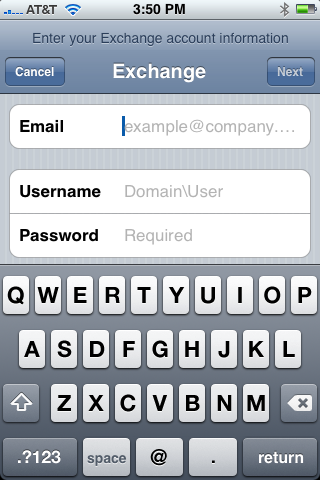
- Set up a new mail account, selecting Exchange as in the photo above.
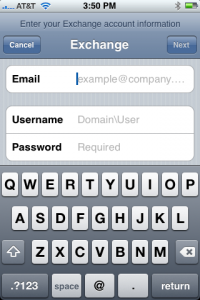
- Enter your email address (e.g. “[email protected]”) in the Email box.
- Enter your Exchange domain and username (e.g. “msexec\billg.microsoft”) in the Username box and watch the text magically shrink to fit.
- Enter your password (e.g. “OuttaHere!”) in the Password box and marvel at the nifty new “show the last letter entered” feature.
- The iPhone will now try to automatically discover your Exchange server. If you don’t have Exchange 2007 with Autodiscovery turned on, it will fail and warn you that it couldn’t validate your account. You will have to manually enter your server name in the window. Make sure you enter your ActiveSync server name, not the OWA server (as in Entourage) or the real Exchange server (as in Outlook).
- Now tap the home button and go into Mail. You should see your new account appear, and it should show your folders and email messages within a few moments. Congratulations! Email is now set up!
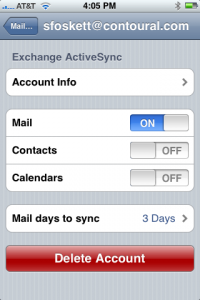
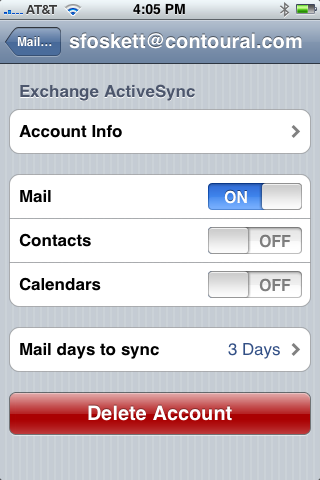
Next we will enable sync for Contacts and Calendars.
Note: You can’t sync Contacts and Calendars from both Exchange and iTunes! You must choose one or the other! And the iPhone will delete your old entries when you enable this! Update: You can do both desktop and over-the-air calendars in iPhone OS 3.0!
Ok, enough shouting, on with the show!
- Once you’re sure email is working, go back into the Exchange Account Settings tab (shown above) and tap Contacts to “ON”.
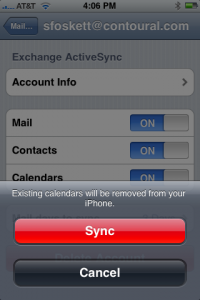
- The iPhone will warn you about deleting your existing entries, just like I just did! If you’re sure, tap “Sync”.
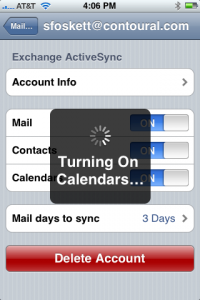
- Now the iPhone will enable Sync. Do not go running up to the Calendar or (new!) Contacts App and expect to see everything there immediately. It took my phone about 5 minutes to populate these, and I was worried when I saw nothing there at first.
- Do the same for Calendar and you’re all set. Wait a few and you will have pretty much full over-the-air Email, Contacts, and Calendar integration!
Initial Impressions
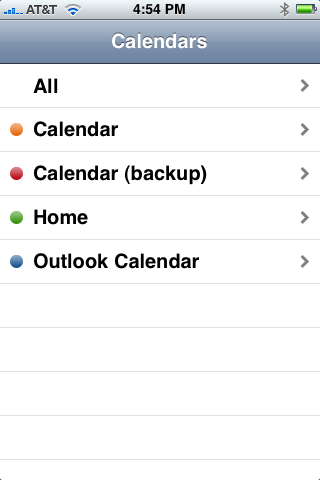 Prepare to be confused by the new Calendar and Contacts apps. They now include categories, and you can find yourself scratching your head at seeing no entries when you’re in the wrong category. I left my calendar in “Home” and there were no entries.
I had to tap “Calendars” at the top to return to the screen at right and select “All”. This could be really nice – I could organize multiple calendars here for work and home. But it’ll take some getting used to. Update: Don’t bother with multiple calendars! Update: Multiple calendars rock in iPhone OS 3.0!
Note that calendar entries are color-coded in the calendar, too, which is a nice touch. I don’t remember any similar functionality on my BlackBerry, but it could be that I just never discovered it. It took me about five years to figure out how to see missed calls, after all!
The same problem appears with the Contacts application. Here again, we have groups of contacts, and what you see is dependent on which group you’re currently “in”. I’ll have to work out how to manage these using Outlook or Entourage.
Thankfully, Apple finally includes a Contacts application on the home screen in OS 2.0. It was always frustrating to have to go into the Phone app just to look at someone’s info!
The App Store is good, but a little perplexing. There are about 500 applications up for sale right now, and not all are worthwhile. There are three “flashlight” apps, for example, all at different prices. I think the App Store will be quite a mess once all 25,000 or so applications have been added! It’s already hard to locate anything.
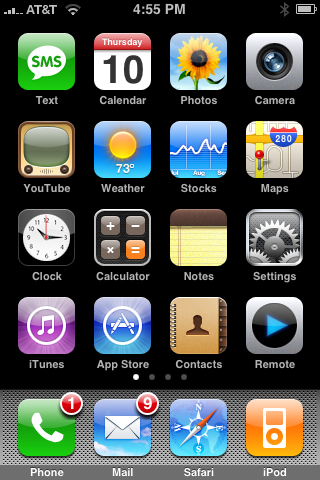 Apple released just two native apps: A $5 Texas Hold’em game, and a free remote control app for iTunes. The latter is pretty nifty – it seems to use Bonjour in reverse to present itself to iTunes instances running on the network. The iPhone shows up in the sidebar and you have to enter a PIN to activate it. This would be much cooler with an AirTunes device – maybe I’ll have to snap up one of the old 802.11g AirPort Expresses currently offered at MacMall for $59!
There are some other worthwhile apps, too. MLB At Bat is great – live game updates and video clips of major plays. I think I’ll be using this a lot! Definitely worth $5 to me.
I already mentioned a couple of games, but I was more interested in trying out the social networking applications. AOL released a free version of Instant Messenger, but I’m not sure if it (yet) supports Apple’s always-on push service. There’s a FaceBook app, too, but it doesn’t look much better than the web version.
This brings me to a major concern about the App Store. Why make a native app to do something the web does just as well? I can see where an offline book or map reader would be handy, but why MySpace? There are lots of Bibles in there already, but where is the off-line/on-line version of Wikipedia that I had hoped for?
Google added a search app, covering both the web and local content on the phone. But where’s Google Talk? Shockingly, after literally sharing the stage with Google at the iPhone’s introduction, Yahoo! is entirely absent from the App Store. Microsoft isn’t there, either.
But there were some nice surprises. Yelp, Pandora, and Paypal all have free clients that look useful. Time will tell which of these apps really get used!
Thanks so much for this, Stephen. It was a big help!
One thing that did confuse me — I did get the message from the iPhone that it could not verify my Exchange server. Now, a lot of Exchange servers have a domain like this:
exchange.domainname.com
However, many DO NOT. In my case, I thought I knew what the subdomain was, but it did not work in the iPhone.
An e-mail to our IT folks got me the answer — there is a re-direct from the subdomain I knew, and THAT didn’t work.
Just to be very clear … I thought it was:
abc.domainname.com
But the real one was one letter different:
abcd.domainname.com
So if it’s not working, just e-mail your IT guys and ask!
Thanks so much for this, Stephen. It was a big help!
One thing that did confuse me — I did get the message from the iPhone that it could not verify my Exchange server. Now, a lot of Exchange servers have a domain like this:
exchange.domainname.com
However, many DO NOT. In my case, I thought I knew what the subdomain was, but it did not work in the iPhone.
An e-mail to our IT folks got me the answer — there is a re-direct from the subdomain I knew, and THAT didn’t work.
Just to be very clear … I thought it was:
abc.domainname.com
But the real one was one letter different:
abcd.domainname.com
So if it’s not working, just e-mail your IT guys and ask!
thanks for the very informative article. but the complications and limitations tempt me to stick with HyperOffice . it simply lets me access and organize my official and personal info (mail, contacts, calendars, tasks, docs) using the safari browser.
thanks for the very informative article. but the complications and limitations tempt me to stick with HyperOffice . it simply lets me access and organize my official and personal info (mail, contacts, calendars, tasks, docs) using the safari browser.
I can’t seem to get my exchange setup on my iPhone. I read through the post and nothing works. I tried the OWA url, the exchange server name, and several other options that I thought would be the activesync server name. Where exactly would I find the activesync server name? I looked through the settings on IIS server but still no success. Thanks for you help.
ebony
I can’t seem to get my exchange setup on my iPhone. I read through the post and nothing works. I tried the OWA url, the exchange server name, and several other options that I thought would be the activesync server name. Where exactly would I find the activesync server name? I looked through the settings on IIS server but still no success. Thanks for you help.
ebony
wow, big thank you for this! Your description of how to find the Active Server was absolutely accurate: oma.company.com did the trick!
now I’m happy exchange user 🙂 Just not clear why AT&T wants to charge 15 bucks more for “exchange support”.. are they going to charge me automatically?
wow, big thank you for this! Your description of how to find the Active Server was absolutely accurate: oma.company.com did the trick!
now I’m happy exchange user 🙂 Just not clear why AT&T wants to charge 15 bucks more for “exchange support”.. are they going to charge me automatically?
Great post.
I have run into something wierd. I can send an email through the exchange set up, but I can’t recieve any emails or sync anything up.
Anyone have any ideas?
I ahve also found it mattered what email address I entered into the email field. I have a number of alias and only one works to send email.
my exchange when I log in via Pop is
https://exchange2003.mycompany.com/exchange/
In the iPhone (Ver 1) I enter
exchange2003.mycompany.com
I know I am talking with the server because I entered the password incorrectly and it accepts the right password.
No calendar or contacts either..
Thoughts?
Great post.
I have run into something wierd. I can send an email through the exchange set up, but I can’t recieve any emails or sync anything up.
Anyone have any ideas?
I ahve also found it mattered what email address I entered into the email field. I have a number of alias and only one works to send email.
my exchange when I log in via Pop is
https://exchange2003.mycompany.com/exchange/
In the iPhone (Ver 1) I enter
exchange2003.mycompany.com
I know I am talking with the server because I entered the password incorrectly and it accepts the right password.
No calendar or contacts either..
Thoughts?
Wow, great description!
Is it right, that I use the same email address as for my exchange mailbox (e. g. my company address)?
Do my company need a extra server for ActiveSync or could they use only one exchange server to install ActiveSync on it? What is the best way for this (1 or 2 server(s)?
How you can read, I don’t have any know how of the ActiveSync funktion on Exchange, do you know a good website, where I can short but good infos?
rlcohen70,
Sounds to me like you have the wrong server name set up, or the right name but the server isn’t working. I think sending still uses SMTP – only receiving uses ActiveSync. But I could be wrong about this… Anyone know?
cybbra,
Yes, you use your official company email address.
I think they can use a single server for everything, and I know that some folks use the same server for OWA and ActiveSync. I’d say it depends on load – if your server can handle everything, why not use it?
I found some information on TechNet (I’m a MS TechNet subscriber thanks to my MVP status) but information is rare. ActiveSync is a proprietary protocol – Apple had to license it from Microsoft. I’d start at Wikipedia and Google, I suppose…
Wow, great description!
Is it right, that I use the same email address as for my exchange mailbox (e. g. my company address)?
Do my company need a extra server for ActiveSync or could they use only one exchange server to install ActiveSync on it? What is the best way for this (1 or 2 server(s)?
How you can read, I don’t have any know how of the ActiveSync funktion on Exchange, do you know a good website, where I can short but good infos?
rlcohen70,
Sounds to me like you have the wrong server name set up, or the right name but the server isn’t working. I think sending still uses SMTP – only receiving uses ActiveSync. But I could be wrong about this… Anyone know?
cybbra,
Yes, you use your official company email address.
I think they can use a single server for everything, and I know that some folks use the same server for OWA and ActiveSync. I’d say it depends on load – if your server can handle everything, why not use it?
I found some information on TechNet (I’m a MS TechNet subscriber thanks to my MVP status) but information is rare. ActiveSync is a proprietary protocol – Apple had to license it from Microsoft. I’d start at Wikipedia and Google, I suppose…
Hello, I am in serious need of help setting up my Ipone 2.0 with my Exchange Server. My IT support guy doesn’t seem to want to try to help either. I have 2003 Exchange Server. there are no other users that use a handheld, and I am using a Verizon Blackberry Worldphone and use Desktop Manager. It seems to get similar results on the iPhone i need to install activesync 2.5. What is that and is this really needed? My IT guru says “no way, don’t install anything on My Server.” (Of course it is not his, but he takes pride in authorship and of setting it up for me 4 years ago.)
The settings I used work for the BlackBerry, (user name, password, exchange address,)but dont work with the iPhone.
Can you add anything about inserting the user name in front of the server name with two \\between the 2 names?
SMTP SERVER question.
I am not sure if you allow two questions in one post and apologize for not knowing the rules, but….
I set up my @comcast.net mail account a number of times. I now have 5 SMTP Comcast Servers that i cannot shut off or delete. last night Apple suggested i reset and delete all content. Two hours later it was done and i set up one comcast account and had one comcast SMTP server showing.
Then I synced with the mac and all the smtp servers came back. How do I get rid of them.
Thank you,
roncan
Hello, I am in serious need of help setting up my Ipone 2.0 with my Exchange Server. My IT support guy doesn’t seem to want to try to help either. I have 2003 Exchange Server. there are no other users that use a handheld, and I am using a Verizon Blackberry Worldphone and use Desktop Manager. It seems to get similar results on the iPhone i need to install activesync 2.5. What is that and is this really needed? My IT guru says “no way, don’t install anything on My Server.” (Of course it is not his, but he takes pride in authorship and of setting it up for me 4 years ago.)
The settings I used work for the BlackBerry, (user name, password, exchange address,)but dont work with the iPhone.
Can you add anything about inserting the user name in front of the server name with two \between the 2 names?
SMTP SERVER question.
I am not sure if you allow two questions in one post and apologize for not knowing the rules, but….
I set up my @comcast.net mail account a number of times. I now have 5 SMTP Comcast Servers that i cannot shut off or delete. last night Apple suggested i reset and delete all content. Two hours later it was done and i set up one comcast account and had one comcast SMTP server showing.
Then I synced with the mac and all the smtp servers came back. How do I get rid of them.
Thank you,
roncan
Do you know if you can set up multiple Exchange Server accounts?
Do you know if you can set up multiple Exchange Server accounts?
Where do I find the ActiveSync server name & the domain/user name on my computer?
I wrote a follow-up piece about guessing your ActiveSync server name (linked above), but it’s not specified anywhere in particular.
Sadly, the domain\username combo isn’t listed in Outlook once you set it up initially – it just shows your long Exchange name, which is normally just your real name.
You should be able to find both by calling your IT guy or checking whatever configuration docs might be available on your intranet…
Where do I find the ActiveSync server name & the domain/user name on my computer?
I wrote a follow-up piece about guessing your ActiveSync server name (linked above), but it’s not specified anywhere in particular.
Sadly, the domainusername combo isn’t listed in Outlook once you set it up initially – it just shows your long Exchange name, which is normally just your real name.
You should be able to find both by calling your IT guy or checking whatever configuration docs might be available on your intranet…
Our hosted exchange setup is interesting, may be helpful to others. My username is different than my email address: un: charlie_blahblah.com vs [email protected]. My domain address is different than my ‘server address’: mail07b.mailtrust.com vs. mail07b.mlsrvr.com. So in my domain\username setting on the iphone: mail07b.mlsrvr.com\charlie_blahblah.com
Our hosted exchange setup is interesting, may be helpful to others. My username is different than my email address: un: charlie_blahblah.com vs [email protected]. My domain address is different than my ‘server address’: mail07b.mailtrust.com vs. mail07b.mlsrvr.com. So in my domainusername setting on the iphone: mail07b.mlsrvr.comcharlie_blahblah.com
Stephen,
I can’t thank you enough for the fabulous explanation on how to setup Exchange Server on the iPhone. After realizing that the exchange server was the http address everything worked great and I am now the proud owner of an iPhone with an Exchange account, which I desperately needed on my phone.
Stephen,
I can’t thank you enough for the fabulous explanation on how to setup Exchange Server on the iPhone. After realizing that the exchange server was the http address everything worked great and I am now the proud owner of an iPhone with an Exchange account, which I desperately needed on my phone.
Hello,
I just followed your tuto, and I don’t know how to retrieve My ActiveSync Server Name.
I access owa like via IE this: https://IpServer/exchange but not works on Iphone.
I’ve tried IpServer/Microsoft-Server-ActiveSync/ no way
I’m mad!!
Could you help me please?
I can connect OWA on my safari’s Iphone.
Thank u
Omegabk,
The fact that your server name doesn’t have a fully-qualified domain name suggests that it only works inside your network or via a VPN. Can you, say, access that exchange server from IE while sitting in Starbucks without starting a VPN client? Probably not, and this is your problem. You need to either figure out your fully qualified OWA server name (and you might not have one) or use the iPhone’s VPN support, which can be hit or miss and I don’t have documented.
Sorry!
Stephen
Hello,
I just followed your tuto, and I don’t know how to retrieve My ActiveSync Server Name.
I access owa like via IE this: https://IpServer/exchange but not works on Iphone.
I’ve tried IpServer/Microsoft-Server-ActiveSync/ no way
I’m mad!!
Could you help me please?
I can connect OWA on my safari’s Iphone.
Thank u
Omegabk,
The fact that your server name doesn’t have a fully-qualified domain name suggests that it only works inside your network or via a VPN. Can you, say, access that exchange server from IE while sitting in Starbucks without starting a VPN client? Probably not, and this is your problem. You need to either figure out your fully qualified OWA server name (and you might not have one) or use the iPhone’s VPN support, which can be hit or miss and I don’t have documented.
Sorry!
Stephen
Stephen,
I appreciate the consolidated info available via your pages on this issue. However, I’m beginning to suspect I/we have an iphone problem here.
mail.company.com/exchange
No access with domain\user or user
No access with domain entered or not.
No access using SSL or not.
We’ve tried all possible variations of the above, attempting to connect to two different Exch servers (2003, one w/sp2, one w/sp1). Our iphones will not connect using exact same settings used by our WinMo devices (all iphones are 3G 2.1). The iphones sometimes fail, sometimes lock up when attempting to connect via wifi or 3G.
Is there anything we haven’t tried before we relegate the iphone to an “also ran” mobile device for our office? Thanks.
Stephen,
I appreciate the consolidated info available via your pages on this issue. However, I’m beginning to suspect I/we have an iphone problem here.
mail.company.com/exchange
No access with domainuser or user
No access with domain entered or not.
No access using SSL or not.
We’ve tried all possible variations of the above, attempting to connect to two different Exch servers (2003, one w/sp2, one w/sp1). Our iphones will not connect using exact same settings used by our WinMo devices (all iphones are 3G 2.1). The iphones sometimes fail, sometimes lock up when attempting to connect via wifi or 3G.
Is there anything we haven’t tried before we relegate the iphone to an “also ran” mobile device for our office? Thanks.
I have just gone from O2 XDA 11 to and Iphone. How do I simply connect all my old contact etc. I do not want to use email I only wish to use phone, calender an contacts.
Can someone help me?
William Gill
Sydney Australia
Thanks man. Great article, it helped a lot!
Hi, Stephen. Do you know of any problems with push notification after the 2.2 update? The ActiveSync had been working great until then. Now, I can only get my email if I go into the account; mail is no longer pushed. I have read in various blogs that others are having the same problem, but their apparent solutions (deleting and reinstalling the account, soft/hard resets, etc) have not worked for me.
Thanks in advance.
J
I've had weird/intermittent problems with push, and especially calendar, ever since 2.0. Some have suggested that re-adding the Exchange server after an upgrade is a good idea, and that did seem to fix my issues after 2.1. So maybe this might help?
I’ve had weird/intermittent problems with push, and especially calendar, ever since 2.0. Some have suggested that re-adding the Exchange server after an upgrade is a good idea, and that did seem to fix my issues after 2.1. So maybe this might help?
If you are looking for a step by step troubleshooting example of iPhone 3G and Exchange ActiveSync, you can visit http://iphone-activesync.net/?page_id=16
“It cuts to the chase” Most people are missing the basics.
If you need to synchronize exchange server tasks and notes there is a new application available on AppStore. It’s named Tasks’n Notes and you can find it here :
http://www.itunes.com/app/tasksnnotes
This is the application support page :
http://www.basisinformationtechnology.com/tasksnnotes
Awesome! The Exchange server setting had me stumped; this is a very clear explanation.
Thanks
I have 2 iphone running 2.2 o/s and I have followed the instructions mention but still to no avail it will not work… Does the software on the iphone need to be 2.0 or can it be a more recent version.
Where it falls over is once the mail account has been created it goes to verify and keeps comming back that the password is incorrect?….
If you want to access exchange server appointments, calendar, contacts and email on your ordinary mobile you can use a cool software called remosync…… i am using it on my regular phone from a year or so no problems with it.. you can download it here
http://www.remoba.com/remosync.html
Tried everything mentioned by everyone. Still cannot sync to Exchange Server. Can remove the SIMS card from Iphone, put it in a BlackJack and everything works perfectly. Have checked multiple times my configuration settings and everything is correct. I know they’re correct because they work with the BlackJack. What else could be wrong? SSL?
Stephen,
Do you know if the data (email) is encrypted during transport when using ActiveSync on iPhone?
Thanks
Saqib
Hi,
I follow the instruction that was stated here on your websute and i have try it our but still doesnt work.
have any clue
my iphone is dead the lcd scree on tthe inseide has gone can i still active sync it the version 2.0 8gb
helllp x
my iphone is dead the lcd scree on tthe inseide has gone can i still active sync it the version 2.0 8gb
helllp x
“Why make a native app to do something the web does just as well?”
Because web browsers are not fundamentally designed to handle much more user interaction beyond simply displaying and reading text and images. Native applications always have deeper, richer access to the full system’s APIs, user interface, and connections.
thank god for this-wonderful.
Hello Stephen
Nice Site we having trouble receiving emails from our exchange server 2003 with the iphone once a day it lock the user mailbox we thought it the min and maxheartinterval on the server but coiuld the probelm lie with the iphone itself? we are using the old iphone not the iphone gs
using activesync. contacts have an issue.
it only can sync 450 contacts. i have more than 450 contacts.
does anyone have any suggestions?
Hi there, I got my iphone synched up yesterday and when I delete emails from my iphone, it also deletes them from my inbox on outlook. I would rather the emails only be deleted from my iphone, how do I change the settings to make this happen?
hi
Im having trouble with my iphone. Can anyone help? PLease!!
how to set up my comcast.net email on my iphone?
how do i get my company server if they dont give it to me? I have a Doamin and Password
goto into your webmail, click on options, then on about – it should give you the name of the Client Access Server
Thanks for this handy guide – quite a few details about Activesync setup are fairly opaque and mysterious! Having access to my Exchange calendar when I’m on the move is a big plus for me. I also like the fact I can turn off the email account during the weekends!
Okay, I managed to set up an exchange account with ActiveSync, except I can’t get mail. The calendars and contacts both sync perfectly. I can see my exchange mailboxes but when I try to open the mail box I get: Cannot Get Mail; the password is incorrect. Tried tonnes of different things but can’t get my mail. Has anybody seen this type of thing before/
I usually rely on my husband to help me set up anything whether it be for my iphone, laptop, etc.
With your instruction guide, I did it on my own and did not need further instruction. Thank you!
This is just crap. It says “DomainUser” on iphone and this so called tutorial tells us that we need to enter our domainuser there. Great info!
It all works fine but my emails only last a week or so then disapear from the phone but not my outlook. Where do I tell it to keep all emails on my phone?
thanks
Kim
Did you have know what is teh setting to make this happen to only delete on the iphone but not inbox on Outlook.
Are you kidding?!?
When someone tells you to say, “I , do swear to blah blah blah…..” You actually say, “I, State your name?”.
Stephen,
I am using my Ipod Touch to access my work email on an Exchange server 2003. It works when I am accessing it using the wifi at the office, but it does NOT work when I use offsite wifi. What can I tell my IT guy to do so that it works offsite also? Thanks.
Well since this is prety old, i thought id make a comment anyway. How is the autodiscover enabled?
The link with the commands doesnt make sense to me, as we dont have a website, unless the website is OWA.
It keeps saying ‘setactiveetc is not a recognized internal or external command…Anyone know the problem¿
I am not able to configure my microsoft exchange to my iPhone, i followed the method shown in this page? request to help to confirgure my iphone.
I would like to delete some mail from my iPhone with out deleting from my exchange account. Is there any way to do this?
This is pretty useful information, however please allow to present my requirement and let me know what could be done.
I want to use my web application to perform remote commands like (lock, wipe) over the iPhone, can I integrate somehow MS ActiveSync to my web app? So user can do everything by remaining in my web app?
Advance Thanks
Jeet
how do I add a phone exchange…I already added email and calendars