Time Machine is one of my favorite Mac OS X features. Sure, it’s not loaded with features and customizability, but it works for the most part. Plus, it’s so easy to set up that it encourages the average computer user to actually have a backup. Anything that encourages backups is great news in my book!
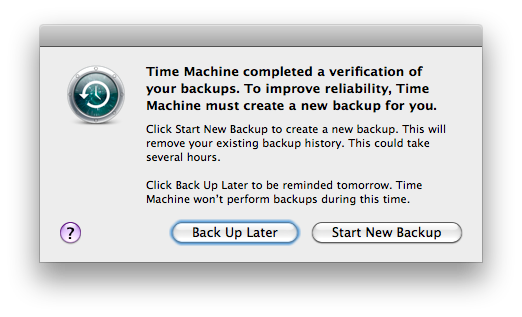
But Apple recently rolled out a “Time Capsule Backup Update”, and included it in Mac OS X 10.6.4, that is causing confusion and concern. In the name of improving “the reliability of your Time Capsule backup,” this update has the unfortunate side-effect of detecting errors in existing backup bundles and forcing users to start a new backup. It happened with two of my Macs so far, so I was keen to find out what’s going on.
Verifiably Bad
Time Machine may look simple, but it’s an incredibly complex piece of software. It uses multiple kernel-level features and builds a complete files-level copy of your data in a “bundle” that acts like a virtual drive. Rather than storing files multiple times (which would be space-inefficient) or hard-linking them (which is efficient for space but would take a long time), OS X adds directory-level hard links, a fairly new concept. So if no changes have been made in your /Applications directory, it just creates a single link to a previous copy. OS X also includes a new daemon to monitor changes on a directory basis, which is also fairly cool in a geeky sort of way.
This intricate but powerful system can lead to trouble, however. If a backup process is interrupted while it is working, the relationships between directories, files, and dates can become corrupted. This is especially common for network-mounted drives, explaining Apple’s reluctance to allow non-Apple NAS units to be backup targets. But even local direct-attached drives can sometimes become corrupted over months of operation.
As (poorly) explained in Apple’s Knowledge Base article HT4076, corruption can cause previous Time Machine backups to be unavailable. So Apple introduced a more-robust mechanism to check backup integrity and rolled it out in Software Update and as part of OS X 10.6.4. It scans old backups and, if errors are found, flags them read-only and starts a new backup bundle. See this Apple Support Discussion thread and this web site for more information.
What You Should Do
Let’s cut through the confusion caused by Apple’s typical lack of explanation.
Should you install this update? Yes! Corrupt backup images are bad, regardless of the cause, and you need to know whether yours is good or not. Installing the update might cause you to start a new backup bundle, but at least you’ll know your data is safe!
Should you click “Start New Backup”? Not yet! If you see the dialog above, your existing Time Machine backup is corrupt, and you might not be able to recover data from it. But you can save a copy of the corrupt bundle and, perhaps, extract some data from it if needed.
Ask yourself if Time Machine has saved data you might need before deciding what to do next:
- If you are sure you won’t need anything backed up before today, click “Start New Backup” and let Time Machine do its thing.
- Otherwise, click “Back Up Later” and save a copy before letting Time Machine start a new backup. Just look for a file called “computername.sparsebundle” (for network backups) or “Backups.backupdb” (for local ones) and create a copy with a different name. You can open sparsebundle files with DiskImageMounter and browse them like any other disk. More information is available here.
There you go. If you click “Start New Backup” when you see this dialog box, Time Machine will erase all of your old backup data and start a new bundle. It won’t be corrupt, but it will be empty.
Note that you can manually initiate a Time Machine backup integrity check by option-clicking the “Time Machine” icon in the menu bar and selecting “Verify Backups.”
Stephen’s Stance
Backups are good.
Corrupt backups are bad.
Time Machine encourages backups, and works pretty efficiently, so it’s good.
This update ensures that Time Machine’s backups aren’t corrupt, so it’s good.
‘Nuff said.

Hi Stephen- Thanks for the great article – I’m having trouble locating the sparsebundle though.
thanks for any help
ezra
“Otherwise, click “Back Up Later” and save a copy before letting Time Machine start a new backup. Just look for a file called “computername.sparsebundle” (for network backups) or “Backups.backupdb” (for local ones) and create a copy with a different name.”
thanks this is helpful. I wish Apple had the honesty to admit that there was a problem, rather than vaguely talking about ‘improving reliability’.
So can anything be done to avoid this corruption happening? Since moving to Lion I’m experiencing it on my NAS about once per month. I would like to have a backup history that reaches farther back than that.
Hi Stephen, this may be an alternative way:
A simple way to repair
TimeMachine Backups on a NAS Storage
(in this case a Synology DiskStation
210 j, typically used via WLAN from 2 MacBook Pros, running the latest version
of Snow Leopard)
When it first happened
to me, I tried to follow Garth’s recommendations, but somehow I seem to be too
inadept with the terminal.
I then tried around,
using some of the facts that I learnt in different blogs.
Since then, it has
worked for me twice.
Here’s how:
First, inactivate
TimeMachine or chose a different backup disk.
Next, you have to make
the “broken” backup accessible by:
1.
Mount the
NAS share on which the disk image resides. (There probably is a „locked“ symbol
at the bottom left corner oft the image’s icon)
2.
Control-click
the icon and select „Show Package Contents“. There probably are 2 files with a
„locked“ symbol inside the package: „com.apple.TimeMachine.MachineID.plist“ and
„token“.
3.
Select
each one of them; call up the info window by either clicking „command-I“ or by
using the menu. The checkbox „locked“ will be selected. Deselect it and close
the info window. When you are done with both files, close the package window.
Next, you have to
mount the disk image, which can take quite some time and which is best done
using a LAN cable.
4.
Navigate
through the folder levels until you find the folders, which are named after
date and time of each individual backup.
5.
Assuming
that something went wrong during the last backup, throw the complete contents
oft the „Latest“ alias into the trashcan. This usually requires unlocking
several of the contained folders using info window as described above. Empty
the trash.
6.
Just to be
on the safe side, I always removed the 2 most recent folders as well, but I
don’t know whether this is really necessary.
7.
Write down
date and time of the most recent folder you leave behind.
8.
Next, run
Disk Utility to repair the image
9.
Eject the
image
Now, you have to
modify the „com.apple.TimeMachine.MachineID.plist“ file that you unlocked in
step 3 to reflect the new status of the backup:
10.Open the
package contents
11.Open the
file with the “Text Edit” application.
12.In the
line “yyyy-mm-ddThh:mm:ssZ” adjust date and time to
the date and time of the most recent folder left in the sparse bundle disk
image.
13.The line “number”
may read “2”. Change it to “1”.
14.Close and
save the file.
15.Close the
package window.
16.Activate
TimeMachine and select the repaired NAS share. Option-click on the TimeMachine
icon in the menu bar and select “Verify Backups”. After this has finished, you
should be back in business.
This sparsebundle business is only relevant to backups that are created over a network — either to a Time Capsule or to a disk mounted on another computer. (I assume also to NAS, but I have no experiences with NAS.)
It is NOT relevant to local Time Machine backups, ie backups made to a disk plugged into your USB or firewire ports or whatever.
Trying to delete files and folders from Time Machine storage manually like the above is problematic. It won’t work (even with sudo) on local Time Machine volumes, because Apple adds a whole layer of additional protection to these volumes via extended attributes.
It might work for remote Time Machine volumes depending on exactly what host (either a remote computer or a NAS OS) is providing the file system. and how much of Apple’s latest AFP and HFS+ magic it supports, but it’s doing unexpected things behind Time Machine’s back.
The RIGHT way to manipulate a Time Machine volume is to use the tools designed for this purpose. There are two common situations:
– If what you want to do is delete ALL VERSIONS of a file or folder (removing all history of the file/folder) you do this through the GUI. Start up the Time Machine “black hole” GUI, find the file/folder you want to delete, and click on the “gear wheel” icon in the Window’s title bar. One of the options there will be something like “Delete all history”
– If what you want to do is delete either hidden state (like the “latest” file described in the comment above) or the oldest dated saved folder or whatever, ie you want to perform a “normal” type of delete of a single file/folder, not a delete of all history of that file/folder, open terminal and use the tmutil command.
sudo tmutil delete …
will delete the file/folder of interest, just like rm, only in the Time Machine approved fashion.