• Home
  • About
    • Stephen Foskett
      • My Publications
        • Urban Forms in Suburbia: The Rise of the Edge City
      • Storage Magazine Columns
      • Whitepapers
      • Multimedia
      • Speaking Engagements
    • Services
    • Disclosures
  • Categories
    • Apple
    • Ask a Pack Rat
    • Computer History
    • Deals
    • Enterprise storage
    • Events
    • Personal
    • Photography
    • Terabyte home
    • Virtual Storage
  • Guides
    • The iPhone Exchange ActiveSync Guide
      • The iPhone Exchange ActiveSync Troubleshooting Guide
    • The iPad Exchange ActiveSync Guide
      • iPad Exchange ActiveSync Troubleshooting Guide
    • Toolbox
      • Power Over Ethernet Calculator
      • EMC Symmetrix WWN Calculator
      • EMC Symmetrix TimeFinder DOS Batch File
    • Linux Logical Volume Manager Walkthrough
  • Calendar

Stephen Foskett, Pack Rat

Understanding the accumulation of data

You are here: Home / Everything / Apple / How To Assign Keyboard Shortcuts To AppleScript and Automator Actions

How To Assign Keyboard Shortcuts To AppleScript and Automator Actions

August 9, 2010 by Stephen 11 Comments

Last week, I posted a piece about How To Automate “Get/Send Clipboard” in Mac OS X Screen Sharing. In that article, I advocated using the Mac’s Speech Recognition to launch the AppleScript commands from any application (except Screen Sharing itself). But what if you don’t want to talk to your computer? Here’s a method of launching AppleScript or any other Automator action using keyboard shortcuts regardless of what application you are currently in. And it uses no third-party software, a bit plus as far as I’m concerned!

Keyboard Shortcut Limitations

One of the best aspects of Mac OS X is that many useful features are centralized and uniform across all applications. This includes keyboard shortcuts, which can be created modified for any application using the System Preferences panel. But there’s a frustrating limit to Mac Keyboard Shortcuts: You can only assign shortcuts to menu bar commands, not any other application actions. Therefore, it’s not obvious how to assign keyboard shortcuts to AppleScripts, application launching, and other non-menu activities.

This is pretty much the exact opposite of the limits of AppleScript programming. AppleScript and Automator make it easy to automate actions within applications but difficult to access the menu bar! But there is a loophole to both limits.

Automator Services
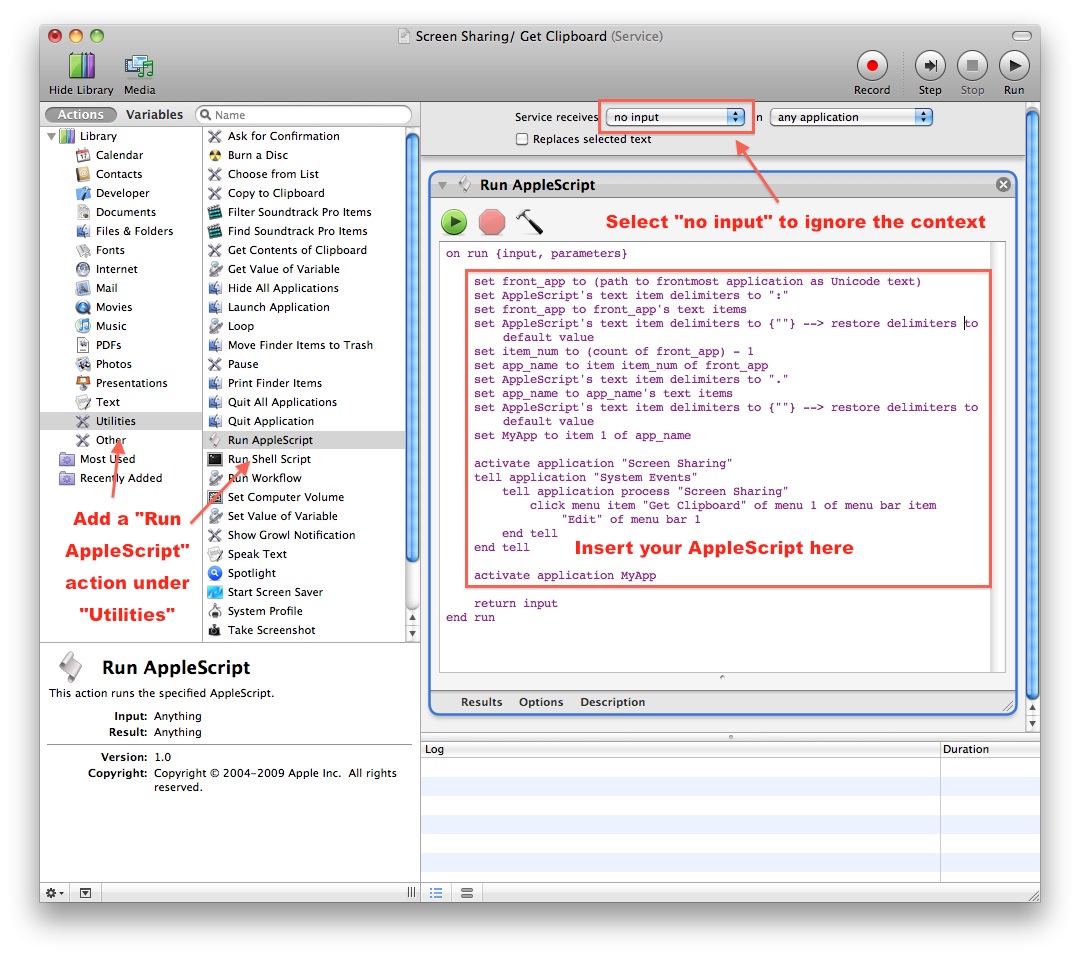
Use Automator to add your AppleScript as a universal Service

Recent versions of Automator circuitously address this limitation by allowing you to create Services. Since these appear in the menu bar (in the Application’s main menu), they can have keyboard shortcuts assigned to them. It just take a bit of cleverness to make them work correctly!

Since Automator can run arbitrary AppleScript commands as well, it’s possible to redo our Screen Sharing script as an Automator service and make it work across all Mac OS applications!

First, open Automator and create a new service. Choose the “Service” template, select “Utilities” from the Library, and double-click “Run AppleScript”. Replace the “(* Your script goes here *)” portion with your desired AppleScript commands.

Shortcuts Everywhere!
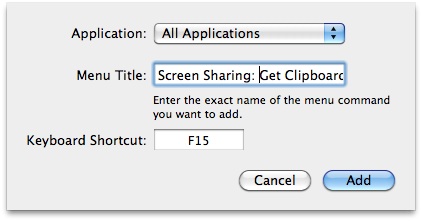
You can assign a keyboard shortcut to the menu item for a service created in Automator

Now comes the trick. Services are context-sensitive (cool!) but we’re creating one we want to always be available. Notice the menus for “Service receives selected text in any application” at the top of the Automator screen? This is where you set the context for that service. Since we want our “get” and “send” commands to be available regardless of the context, we’ll change the first box to “no input”. This tells Automator to always include this service in the menu.

Save the resulting service with a descriptive and unique name and we can move on to add the keyboard shortcut. Remember that name! Maybe even copy it to the clipboard!

Open the Keyboard Shortcuts pane in the Keyboard panel in System Preferences. Click the plus sign to add a new shortcut and enter the name of the service exactly as you typed above. Assign a key to activate it and you’re ready to go.

Now whenever you press that key, in any application or context, it will run your AppleScript command. You can use this to automate just about anything, from launching an application to locking the computer to initiating a background process.

If only Apple didn’t make it so obtuse!

You might also want to read these other posts...

  • How To Turn On Bluetooth In Mac OS X Using Only The Keyboard
  • How To Connect a 4K Monitor to a 2012 Retina MacBook Pro
  • Cloud Services Don’t Buy Boxes, But Service Providers…
  • How to Use Mac OS X Sparse Bundle Disk Images
  • Despite Appearances, SpectraLogic’s BlackPearl…

Filed Under: Apple, Personal Tagged With: Apple, AppleScript, Automator, keyboard shortcut, Mac OS X, OS X, Screen Sharing, Services, System Preferences

  • Michelle

    Brilliant tutorial Stephen. Quicksilver had been driving me loopy by keeping deleting my triggers and with this now I don’t need to go anywhere near it!

  • Pingback: Applescript to put the current track in iTunes into the clipboard()

  • Pingback: Opening or restoring an application using AppleScript()

  • Micky

    Thank you very much.. the hint using a “service” did the ohhhh-ahhhh for me!!!

    regards, David

  • Pingback: neue Datei mit Finder erzeugen » Tu was? - My public notepad – use at your own risk (Infos auf dieser Seite ohne jegliche Gewähr)()

  • AC

    For some reason this doesn’t work for me. I’ve tried my AppleScript, and that works like a charm. But when I assign the service to a key, pressing the key just gives me this characteristic “error” sound (as if the OS doesn’t understand what I’m trying to do). Any ideas?

  • AC

    Oh yeah, I’m using Snow Leopard (10.6.8).

  • swavek

    ‘AC’ – in Keyboard Shortcuts pane enter full name of your saved workflow with extension ex:   service_name.workflow
    works great on 10.6.8 
    thanks Stephen.

  • Allen

    Where do you save the automator/applescript file so that is activates in any program?  I am using 10.5.8

  • Peter Theta

    I’m using this for window resizing to preset dimensions by pasting this in, with differing numbers:

    set theApp to ((path to frontmost application) as text)
    set the bounds of window 1 of application theApp to {0, 21, 940, 1196}

    Thanks!

  • Blackwo

    Very helpful thanks! 🙂

Technology is the name we give to things that don’t work yet

Danny Hillis

Subscribe via Email

Subscribe via email and you will receive my latest blog posts in your inbox. No ads or spam, just the same great content you find on my site!
 New posts (daily)
 Where's Stephen? (weekly)

Recent Posts

Dell, Wall Street, Magic Beans, and the End of EMC

Dell, Wall Street, Magic Beans, and the End of EMC

September 7, 2016

FreeNAS First Impressions

FreeNAS First Impressions

August 25, 2016

Migrating Data With ZFS Send and Receive

Migrating Data With ZFS Send and Receive

August 18, 2016

It’s Fine To Mount Hard Drives On Their Side Or Even Upside-Down

It’s Fine To Mount Hard Drives On Their Side Or Even Upside-Down

August 13, 2016

14 Drives For 14 Ports: A Case For FreeNAS

14 Drives For 14 Ports: A Case For FreeNAS

August 10, 2016

My FreeNAS Build: Supermicro X10SL7, Intel Haswell Xeon, ECC RAM

My FreeNAS Build: Supermicro X10SL7, Intel Haswell Xeon, ECC RAM

August 4, 2016

Hello FreeNAS! Goodbye Drobo and Iomega…

Hello FreeNAS! Goodbye Drobo and Iomega…

August 3, 2016

macOS Sierra Includes a New Apple File System, APFS

macOS Sierra Includes a New Apple File System, APFS

June 13, 2016

Here’s Something Your Raspberry Pi Can’t Do: Gigabit Ethernet and SATA in the Olimex A20-OLinuXIno-LIME2

Here’s Something Your Raspberry Pi Can’t Do: Gigabit Ethernet and SATA in the Olimex A20-OLinuXIno-LIME2

May 25, 2016

Free as in Coffee – Thoughts on the State of OpenStack

Free as in Coffee – Thoughts on the State of OpenStack

May 2, 2016

Symbolic Links

  • Someone Is Learning How to Take Down the Internet - Schneier on Security

  • CFD1 Prep: Druva

  • An OS 9 odyssey: Why these Mac users won’t abandon 16-year-old software | Ars Technica

    An OS 9 odyssey: Why these Mac users won’t abandon 16-year-old software

  • CFD1 Prep: Cisco

  • Jake's Rules of Wi-FI Design

Featured Posts

The Terrifying True Story Of Virtual Machine Mobility

December 22, 2011

Not All 802.11n Networks Are Alike

July 2, 2011

The Rack Endgame: Converged Infrastructure and Disaggregation

September 19, 2014

A Fairy Tale of Two Storage Protocols

September 23, 2014

Review: Blue Snowball USB Microphone

March 31, 2010

Sony NEX-5 Camera Review

September 15, 2010

Why You Should Never Again Utter The Word, “CIFS”

February 16, 2012

What is VMware VASA? Not Much (Yet)

November 11, 2011

The End of Unlimited Data – Part 1: The Buffet

June 2, 2010

10 Mysteries The Lost Finale Definitively Settled

May 25, 2010

Copyright © 2016 · Magazine Pro Theme on Genesis Framework · WordPress · Log in