Update: Things have really changed regarding calendars in iPhone OS 3.0! They are much easier to understand, you can have multiple sources, including iTunes and over-the-air exchange, CalDAV, and ICS. Almost everything I complained about in this 2008 article has been fixed in OS 3.0!
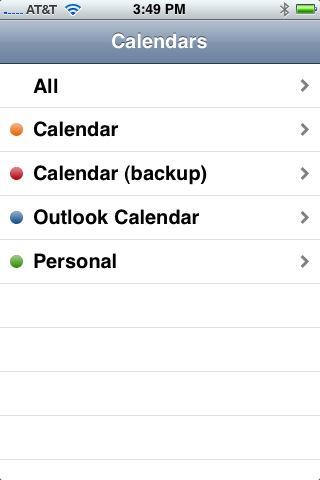
One of the things that surprised me about iPhone 2.0 was the introduction of multiple calendars. I figured that the device couldn’t handle more than one calendar, since syncing to Exchange meant you lost all other calendars. But the exact opposite is true: Everyone who uses Exchange ActiveSync will suddenly see a number of different calendars appear, and this can cause much confusion.
After experimenting with my iPhone, Outlook 2007, and Entourage, I think I’ve figured out how to work with these new mult-colored calendars. Read on for the dirt!
First, the bad news: You will not be happy with this feature, and it’s not entirely Apple’s fault. In fact, you might just want to stop now and ignore the multi-colored calendars.
Scattergories!

Still with me? Here’s the deal: Those calendars you are seeing really are different from each other. Exchange 2007 (and perhaps 2003) allows users to have multiple distinct calendars, and Outlook, Entourage, and the iPhone (but not Windows Mobile) allow you to view them. But it is extremely hard to actually use multiple calendars, and the benefits are debatable.
Note that Outlook also lets you flag events in other ways not related to multiple calendars: With arbitrary color tags tenuously assigned to categories, as private, and as busy/free/etc. It’s all very confusing!
Let’s boil it down. Here are the different ways of organizing your calendar, and what the iPhone does with them. I configured a number of appointments in Outlook to test this out (see above) and watched what they looked like in the iPhone (see at right) and Entourage:

- Free/Busy/Tentative/Out of Office – These flags affect the shading of an appointment in Outlook and can be seen by others. The iPhone ignores them.
- Private/High Importance/Low Importance – These affect visibility to others and your own scheduling, but the iPhone ignores them, too.
- Color Category (Blue/ Red/ Green/ Orange/ Purple/ Yellow) – These are arbitrary labels in Outlook (you can name them anything you want), and the iPhone doesn’t show what you enter. But neither does Entourage!
- Entourage Categories (Family/ Friends/ Holiday/ Junk/ Personal/ Recreation/ Travel/ Work) – Also arbitrary, also colored, and also ignored by the iPhone and Outlook.
- Calendar – This is what the iPhone uses. Create multiple arbitrarily-named calendars (or “Folders”, as Outlook says) and the iPhone will color-code them and display them (or not).
This is terribly confusing, since the color categories have, you know, colors assigned to them in Outlook and Entourage but the iPhone doesn’t use them. Instead it uses the more obnoxious (see below) multiple-calendar support to confuse us all.
It’s interesting, too, that the iPhone doesn’t show the other labels and categories like high/low importance or free/busy/tentative, and that Entourage and Outlook can’t even understand each other’s color categories!
Making It (Sort of) Work
If you still want to make use of multiple calendars, you can. All you have to do is use Outlook or [ad#amazon-kindle] Entourage to create a new calendar (the iPhone apparently handily created three for me, “Calendar (backup)”, “Outlook Calendar”, and “Personal”). Note that, in Outlook, you create calendars by right-clicking on an existing one and selecting “New Folder”, for no apparent reason. Next, create a new appointment in one of those calendars and badabing badaboom, you’ll see it show up in the iPhone.
If you have “All” selected, that is. If you left it in, say, “Calendar”, then you might not see it if you created it in “Home” or “Personal”. And I have no idea what “Outlook Calendar” was supposed to be, since it’s not my Outlook calendar!!!
What’s that, you say? You want to move an old appointment to a different calendar? Well, Microsoft made it as hard as they could in Outlook, but here’s how to do it:
- Open the calendar view in Outlook
- Check the box next to both the source and target calendars and they will show up side by side (see above)
- Now left click and drag an item to copy it, or right-click and drag and select move to move it.
- You can not move repeating entries though! Microsoft says you can navigate back to the original entry and move it as above, but it didn’t work for me when I tried. I had to recreate them.
So moving items is a hassle. And might not even work for the most useful set of items (those that repeat). I’ve got more bad news, though…
You can only share your main calendar in Outlook. So if you want to allow others to see that you’re busy on Thursday, the entry must be on your main Outlook calendar, not on your new Personal calendar. And Entourage doesn’t seem to have a side-by-side view. And the obnoxious “My Day” thingy in Office 2008 only seems to show your main calendar, too.
Let Me Sum Up
Here’s the summary of the iPhone’s multiple colored calendar support:
- It’s really really confusing
- It barely works
- None of the mail products seem to interoperate when it comes to this
- Don’t bother with it
Update: Things have really changed regarding calendars in iPhone OS 3.0! They are much easier to understand, you can have multiple sources, including iTunes and over-the-air exchange, CalDAV, and ICS. Almost everything I complained about in this 2008 article has been fixed in OS 3.0!
See also Scott Lowe’s articles about iCal, CalDAV, Google Calendar and the iPhone.

How do you change the colors?
How do you change the colors?
i quite do sometimes
While it may be limited, being able to view my gmail calendar is still quite helpful. Thanks for posting this and explaining the short comings.
I have played with multiple Exchange calendars, in order to separate work from play on my iPhone Calendars, and now suspect that uploading events from iPhone to Exchange des not work if the Calendar name includes spaces (?!?). Does anyone have any experience of this?
Do you know how to eliminate teh multiple calendars once 3.0 has enabled them – I have three calendars on my phone now and the only one I want is my default exchange calendar but cannot seem to get rid of the others….
my iphone originally just had one calendar option and everything i put in was in blue, now all of a sudden they have turned red and there is another calendar which makes the items orange. i have no need for multiple calendars. how do i delete the orange one and make the orignial one blue again?
my iphone originally just had one calendar option and everything i put in was in blue, now all of a sudden they have turned red and there is another calendar which makes the items orange. i have no need for multiple calendars. how do i delete the orange one and make the orignial one blue again?
my iphone originally just had one calendar option and everything i put in was in blue, now all of a sudden they have turned red and there is another calendar which makes the items orange. i have no need for multiple calendars. how do i delete the orange one and make the orignial one blue again?
being an administrator I have several calendars to track, I really only want to see my personal home & main work calendars on my phone when I open the calendar…any ideas on how to only see appts from 2, if I have 5 on my exchange account?
Hello,
Do you know if it’s possible to DISABLE an alarm for one of the calendar ??I have 2 calendars (on one Exchange account) on my iPhone, the one of my wife, and mine. I would like to be able to see her calendar (or to hide if necessary): so far, so good, that’s easy to do. But, when the calendar is hidden, I would like that the alarm are OFF.
Is this possible ??
DV FX