
I previously wrote about the benefits of custom drive icons, which can help you to keep your removable and internal drives straight, and how to create them on Windows Vista. Well, Mac OS X surprised me by using the same generic icon for every drive, so I set about figuring out how to customize them here, too.
It turns out it’s not only simple to do, but illustrates an odd way in which Apple implemented their split resource/data fork filesystem idea in a GUI. This exercise taught me a lot – what an ICNS file is, how Apple stores drive icons, what a droplet is, and how to use GIMP on a Mac.
This is part 1 – where I’ll go over the basics. Part 2 covers custom Boot Camp drive icons and other troubles.
OS X is pretty clever and consistent in how it handles drive icons. It simply looks in the data fork of the .VolumeIcon.icns file in the root of the drive for an icon resource of type icns, and uses that icon. If it can’t find such a file, it uses one of default icons, designed to suggest either an internal or external (USB or FireWire) drive.
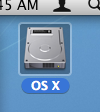
As a new Mac user, I was surprised at the unfriendly look of the default icons. While external drives get a decidedly iPod-generic white shell, internal disks look like, well, bare disk drives. Which is something most Mac users will never see, since most Macs are locked down tight. I expected a Finder-esque smiley face or an image of the machine itself.
Creating an Icon
So let’s create an icon! For my example, I’m assigning a custom icon to a PQI Intelligent Stick mini USB flash drive. If you already have the icon image, you can skip ahead. Otherwise, read on to learn how to create a drive icon.
- Locate a good picture of the drive. I went to PQI’s web site and downloaded their publicity image.
- Now we’re going to clean up the image. I used Wilber Loves Apple’s version of GIMP (the best GIMP I could find)
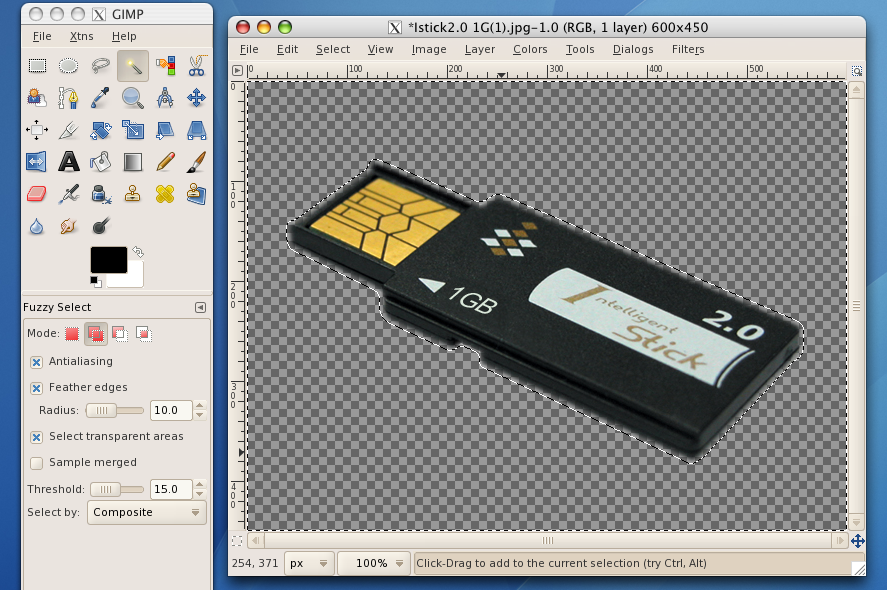
- In GIMP, I added an alpha channel (for transparency), and then used the magic wand (with feathered hair edges) to kill the white background.
- I then saved it to the desktop as a PNG file.
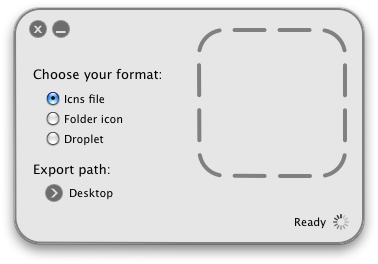
- Next, I converted the PNG into an icns using img2icns
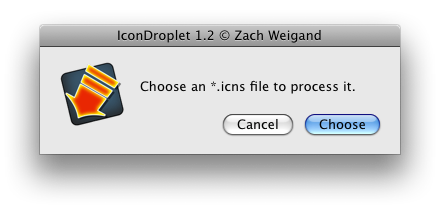
- Finally, to make sure it was the right resource type, I converted the icns file to use itself as its icon using IconDroplet
- Now I had a perfectly-formed icns resource, ready for use!
[ad#banner]
Assigning the Drive Icon
Now we can assign the drive icon to the drive. Note that the drive has to be writable for this to work, which generally means it has to be HFS+ or FAT. I’ll cover adding icons to NTFS and Boot Camp drives later.
- Right click on your drive and select “Get Info”
- Leave that inspector up and right-click the icon file from IconDroplet and select “Get Info”
- Now we will just move the icns resource from one to the other. Select the desired icon in the upper left corner (not the Preview down below) so it has the blue fuzzies around it and use command-c to copy it.
- Now select the one you wish to replace in the other inspector (check for the fuzzies again) and use command-v to paste.
- If all went well, you should now have a custom drive icon installed!
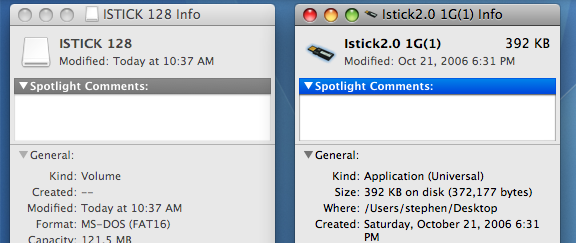
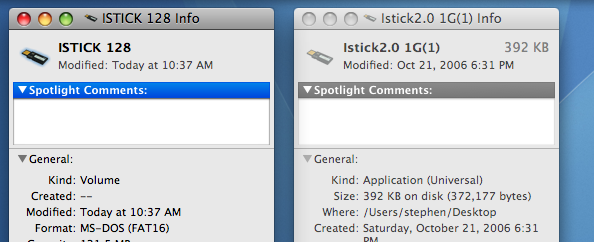
So there you have it. You should be able to use this method to assign custom drive icons all day long, as long as the media is writable. I was amused at how Apple uses the inspector windows to assign icons – where Windows would have some buttons to click, OS X is drag and drop. It may be intuitive, but it’s certainly not obvious – even Apple has to have a document describing the process!
[ad#banner]

thank you so much. did the same for mine just now, easy!
thank you so much. did the same for mine just now, easy!
“Now we can assign the drive icon to the drive. Note that the drive has to be writable for this to work, which generally means it has to be HFS+ or FAT.”
Must be formatted as OS X, not FAT.
This only works for the computer that you set it for. So if you use the drive on another computer it will go back to the default icon.
This only works for the computer that you set it for. So if you use the drive on another computer it will go back to the default icon.
I read this guide a while ago. It really helped.
Cannot get it to work. Flash drive icon shown as an ICO file icon
This is how it shows after i replaced my icon..any ideas? :S