Just a quick tip tonight about something that’s been nagging me. I love my IOGear MiniView Micro GCS632U KVM, but I’ve had a weird problem since hooking it up to my new MacBook Pro. See, the IOGear uses a double press on the Scroll Lock key to switch views. But every time I type this while connected to the Mac, the screen dims two notches. Pretty quick, it’s completely black!
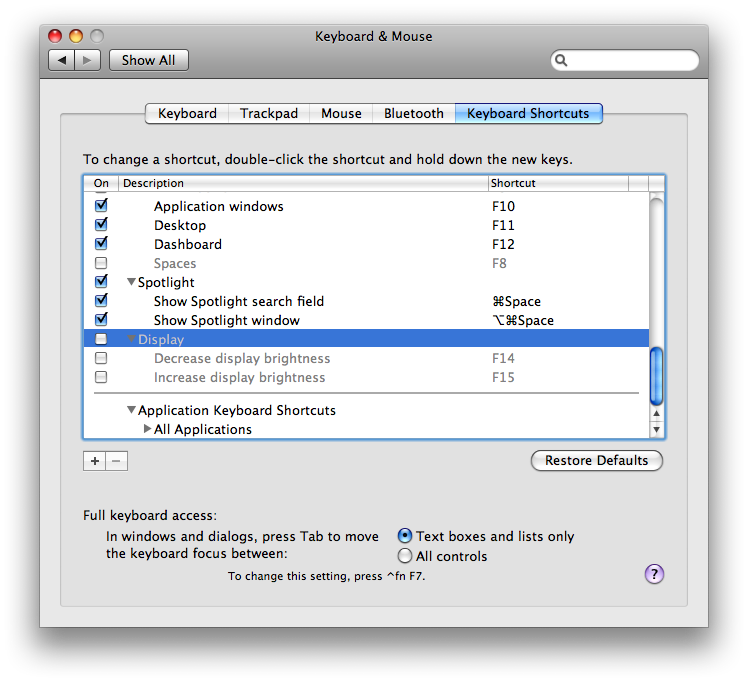 I just solved the problem. The old Apple Extended Keyboard, as revered by Apple fans as my IBM Model M, continued the function key mapping past F12, adding F13, F14, and F15 where Print Screen, Scroll Lock, and Pause/Break is on an IBM 101-key layout. Then they mapped F14 and F15 to dim and brighten the screen, respectively. See the problem? Yeah, the IOGear hotkey is “dim dim”!
It turns out that this is easy to fix. Leopard’s Keyboard & Mouse Preferences panel includes a tab to remap Keyboard Shortcuts. Down at the bottom of the list is “Display”. Expand it and you’ll see the two mappings in question – just un-check them and you’re good to go!
While you’re there, marvel at how none of the other function key shortcuts match up to their functions on the pre-2008 MacBook uses! It’s a really bizarre oversight on the part of Apple to map bright/dim to F14/F15 and to F1/F2 on the same computer at the same time, depending if you’re using the built-in keyboard or not! Apparently, the company shifted all the mappings around for the late 2007 desktop and early 2008 portables, too.
By the way, about that KVM – it’s pretty good, especially for the money. I previously used a GCS62, which is a PS/2 in and out model with no audio, but the GCS632U is more suited to weirdos like me that like to use a PS/2 keyboard and mouse with a modern computer. It takes PS/2 in but sends USB out to the connected computers, and includes audio, too. It’s rock-solid, unlike the Belkin Flip I tried before, but I do wish the audio cable wasn’t captive to the video like it is – it’s just not long enough for the Mac.
Thanks for the tip. I was using a similar KVM (i.e. scroll lock twice to switch computers) so this stopped my Mac display dimming.
I find it interesting that this is still applicable in 2014. Thanks. My Model M (really, the Unicomp Model M made in 2009) thanks you, too.
Thank you very much for the tip!
I was getting tired of having to keep increasing the Mac’s display brightness.
I know this thread is bloody old, but hey, many thanks for this article, it totally fixed this nuisance with my MacBook Pro 2015. So there, content still is relevant almost 9 years down the road. No more trips towards the Dark Side on the Mac… 😉
+1
12 years later and this still works!
My ATEN kvm was doing the same, but disabling the F13 and F14 keys in Keyboard Shortcuts (under Display) works perfect.
Thanks anonymous-internet-contributor
Wow, thank you for this!!